> ## Documentation Index
> Fetch the complete documentation index at: https://docs.purna.ai/llms.txt
> Use this file to discover all available pages before exploring further.
# Projects
> Organize chats, files, jobs, and research workflows with Projects.
Projects help you keep related work together. A project can contain chats, uploaded files, generated outputs, jobs, and debates. Use projects when you want a dedicated workspace for a study, literature search, protein design task, omics analysis, or ongoing research direction.
Every account starts with a default project called **Quick Research**. New chats and files are saved there unless you choose another project.
## Create a project
Open the sidebar and click **New Project** under **Projects**.
Enter a project name, choose an icon and color, then select the visibility setting.
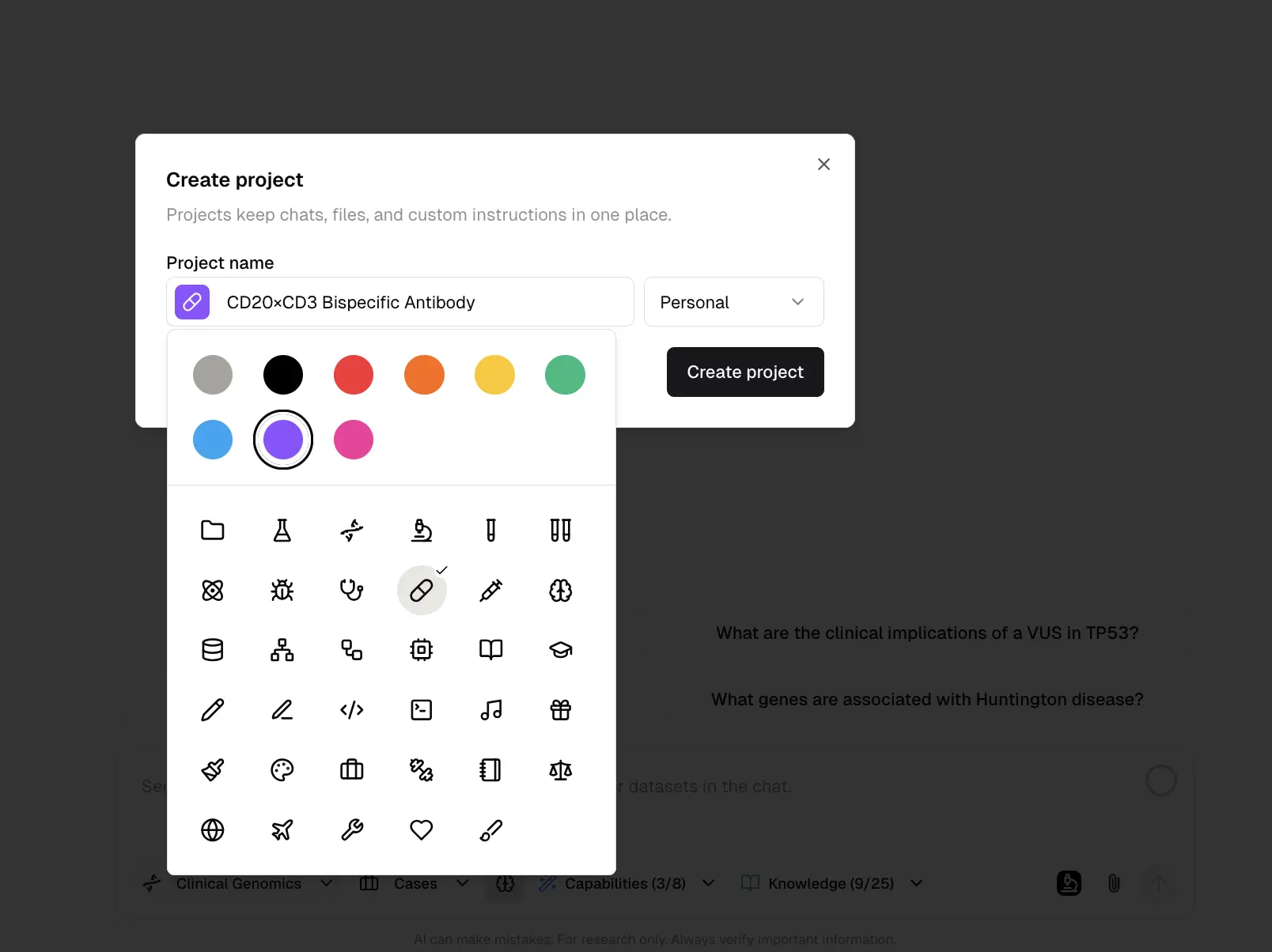
Project visibility controls who can see the project:
| Visibility | Access |
| ------------ | ------------------------------------------- |
| **Personal** | Only you can access the project |
| **Team** | Members of your team can access the project |
Chat privacy is still enforced inside team projects. A private chat remains visible only to its owner. Team members can only see chats that are explicitly shared.
## Select a project in chat
Before you start a new chat, use the project selector in the chat input to choose where the chat should live.
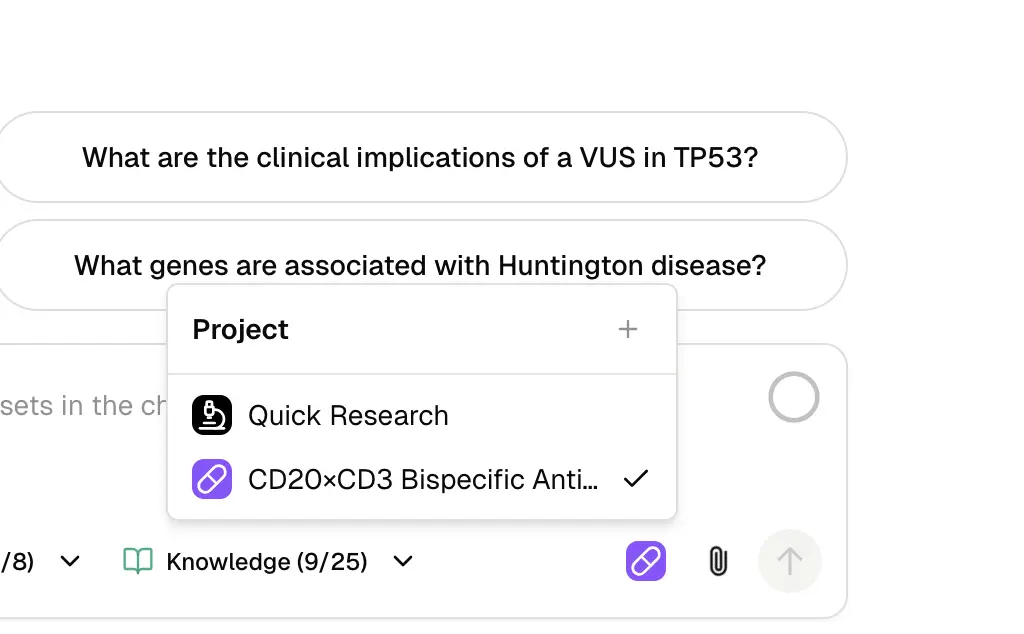
The selected project applies to:
* The new chat
* Files you upload in that chat
* Images, predictions, and generated files created during the chat
* Long-running job outputs connected to the chat
After a chat starts, its project is locked. This keeps the chat, files, and generated outputs in the same workspace.
## View a project
Click a project in the sidebar to open its project page. The page shows chats that belong to that project.
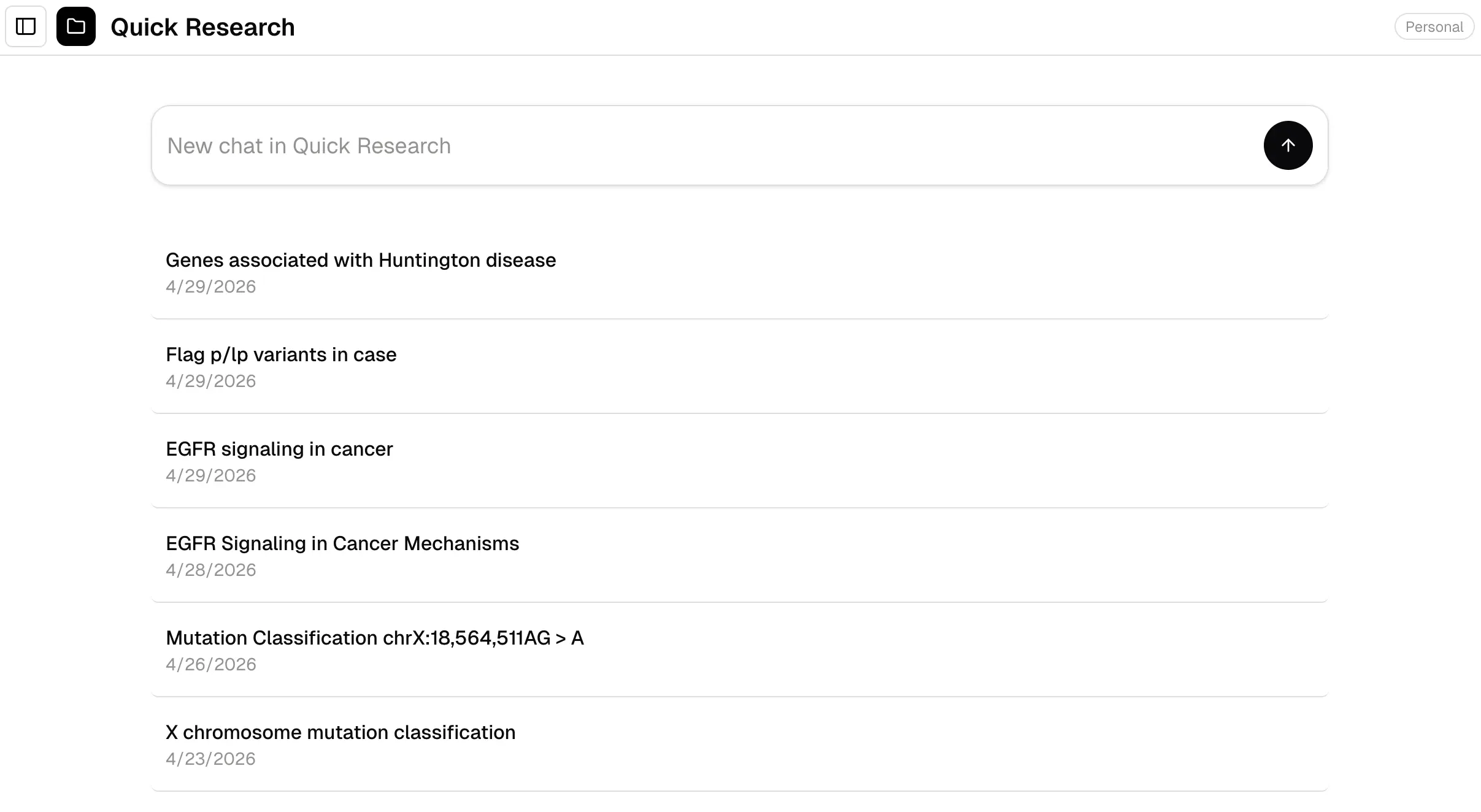
Click a chat to open it. Hover over a chat row to open the menu for available actions such as **Rename**, **Share**, and **Delete**.
## Move a chat to another project
You can move a chat between projects from the chat menu. When you move a chat, Purna also moves the files and generated outputs associated with that chat.
Before the move is applied, Purna asks you to confirm the change.
Moving a chat can change where its uploaded and generated files appear. Review the destination project before confirming.
## Work with files in projects
Files are organized by project. This makes it easier to find outputs from a specific research direction or pipeline run.
Typical project file groups include:
* **Uploads** for files you attach manually
* **Images** for generated figures and visual outputs
* **Predictions** for structure predictions or model outputs
* **Runs** for larger pipeline outputs and job artifacts
Use the **Files** page to browse project-scoped files. If you filter by a project, Purna shows files from that project instead of mixing all account files into one flat list.
## Use projects with teams
Team-visible projects are useful for shared work. For example, a team can create a project for a protein engineering campaign, literature review, dataset analysis, or methods evaluation.
Access follows two layers:
1. **Project visibility** controls whether team members can enter the project.
2. **Chat visibility** controls whether a specific chat is visible to others.
Private chats remain private even inside a team project. Share a chat only when its contents are safe for team access.
## Rename a project
In the sidebar, hover over the project name and click the pencil icon. Update the name, icon, color, or visibility, then save the changes.
Use clear names such as "EGFR resistance review", "Protein design Q2", or "RNA-seq pilot analysis" so chats and files stay easy to scan later.