> ## Documentation Index
> Fetch the complete documentation index at: https://docs.purna.ai/llms.txt
> Use this file to discover all available pages before exploring further.
# Scribe Lab
> Create, edit, and refine scientific documents inside the Purna workspace.
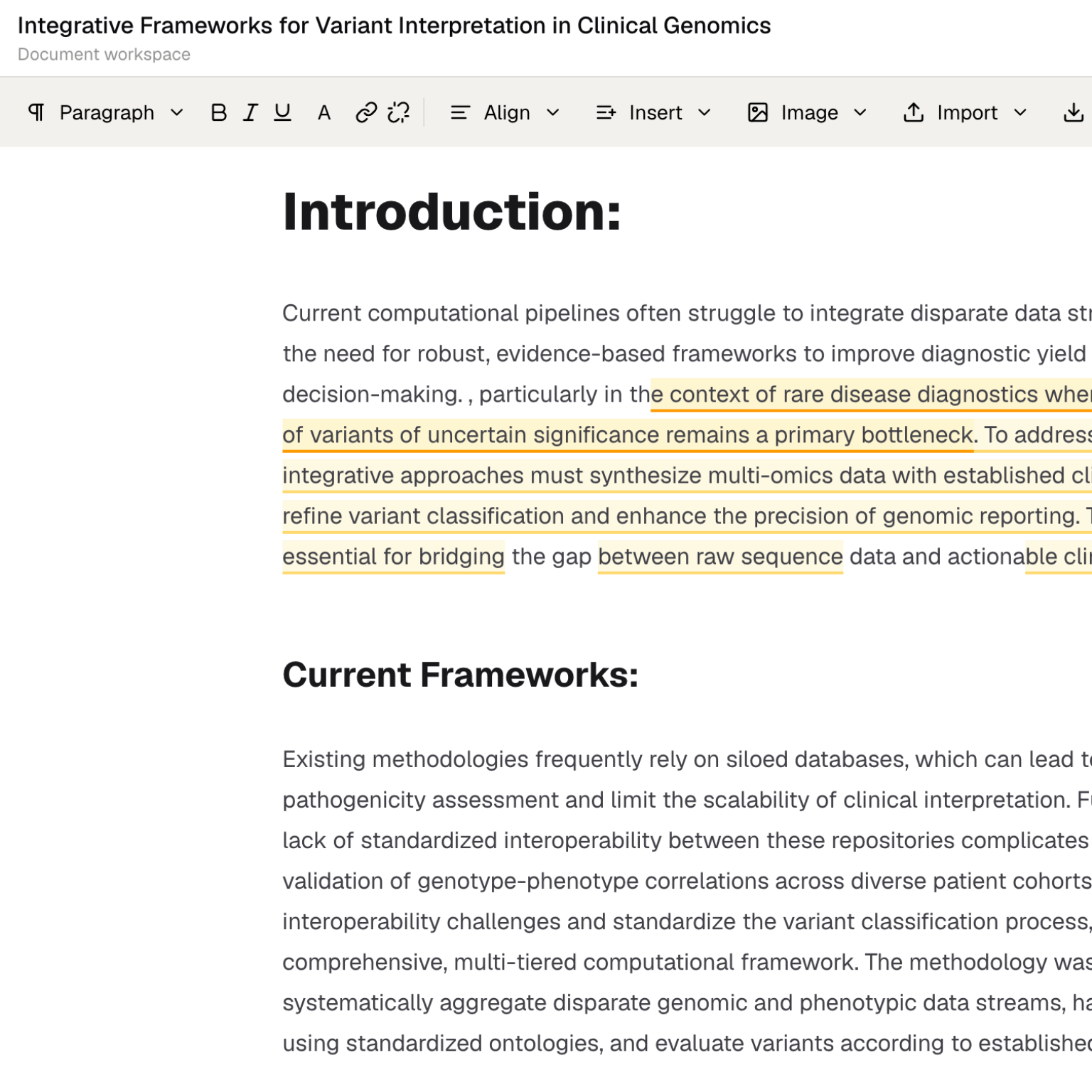
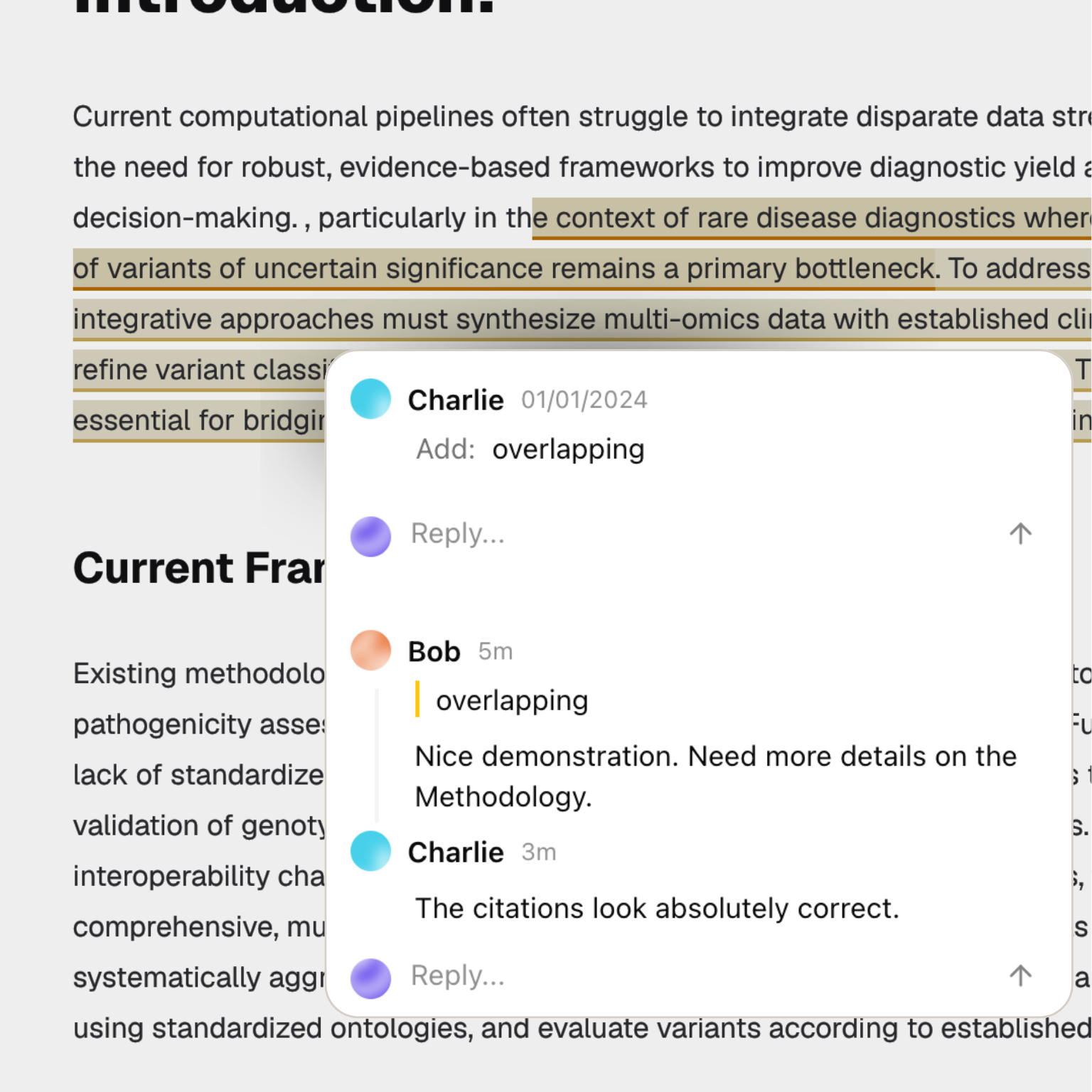
Scribe Lab is the document workspace in Purna. Use it to draft scientific briefs, manuscript sections, methods notes, literature reviews, and project summaries while keeping related research context close to the writing surface.
## When to use Scribe Lab
Use Scribe Lab when you need to turn research activity into a document that can be reviewed or shared.
Common uses include:
* Drafting a literature review from a [Deep Research](/chat-experiences/deep-research) synthesis
* Writing a project summary from chat findings and generated files
* Preparing methods, results, and discussion sections
* Refining scientific language before sharing with a team
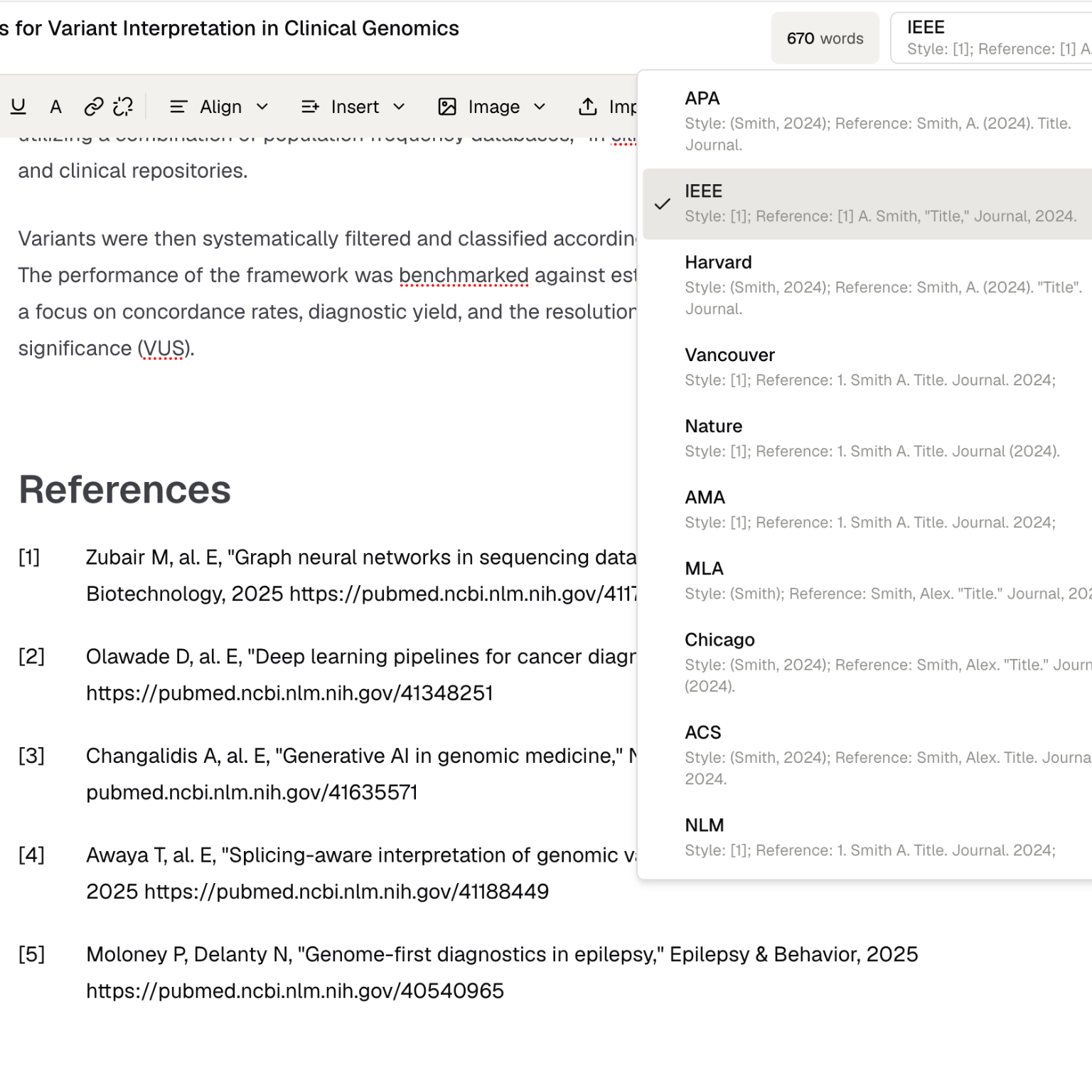
* Keeping citations, figures, tables, and interpretation in one document
## Open Scribe Lab
1. Open Purna.
2. Click **Scribe Lab** in the sidebar.
3. Create a new document or open an existing one.
4. Start writing, paste existing text, or bring in research context from a chat.
## Document editing
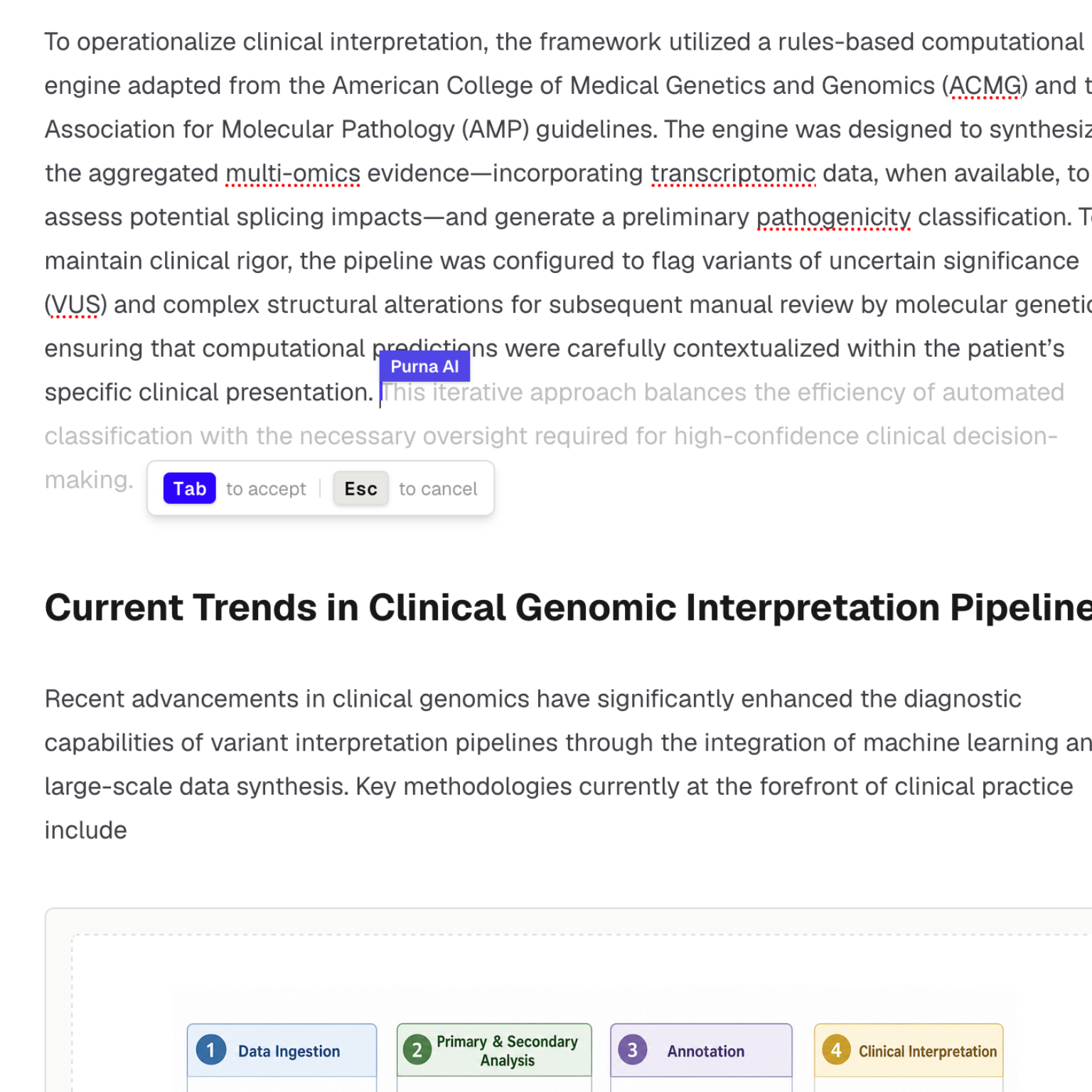
The editor supports structured scientific writing. You can create sections, edit paragraphs, refine text, and organize a draft into a readable document.
Use Scribe Lab for:
| Task | Example |
| ----------- | ------------------------------------------------------------------------------ |
| **Outline** | Create sections for background, methods, evidence, limitations, and next steps |
| **Draft** | Turn notes or chat output into complete paragraphs |
| **Revise** | Improve clarity, flow, and specificity |
| **Review** | Check whether claims are supported by the available evidence |
| **Prepare** | Shape a document for team review or manuscript planning |
## Work with Deep Research
Scribe Lab works best when paired with source-grounded research.
A typical workflow is:
1. Ask Deep Research to investigate a mechanism, target, disease area, pathway, or study question.
2. Review the synthesis and cited sources.
3. Move the relevant findings into Scribe Lab.
4. Organize the material into sections.
5. Edit the draft and preserve the supporting context.
Use Deep Research before drafting when the document depends on literature, database evidence, or source-backed claims.
## Add figures, tables, and outputs
Documents often depend on outputs from other parts of Purna. You can use Scribe Lab alongside:
* Files generated by [Jobs](/guides/jobs)
* Uploaded project files from [Files](/guides/files)
* Figures and tables produced in chat
* Research summaries from Deep Research
* Notes and follow-up analysis from the same workspace
## Best practices
* Start with an outline before writing long sections.
* Keep one document focused on one research question or project.
* Link claims to source-backed research when possible.
* Separate evidence, interpretation, and open questions.
* Use concise section headings so reviewers can scan the document.
Scribe Lab helps prepare scientific documents, but it does not replace expert review. Check claims, citations, methods, and conclusions before using a document in external communication.