
When to use it
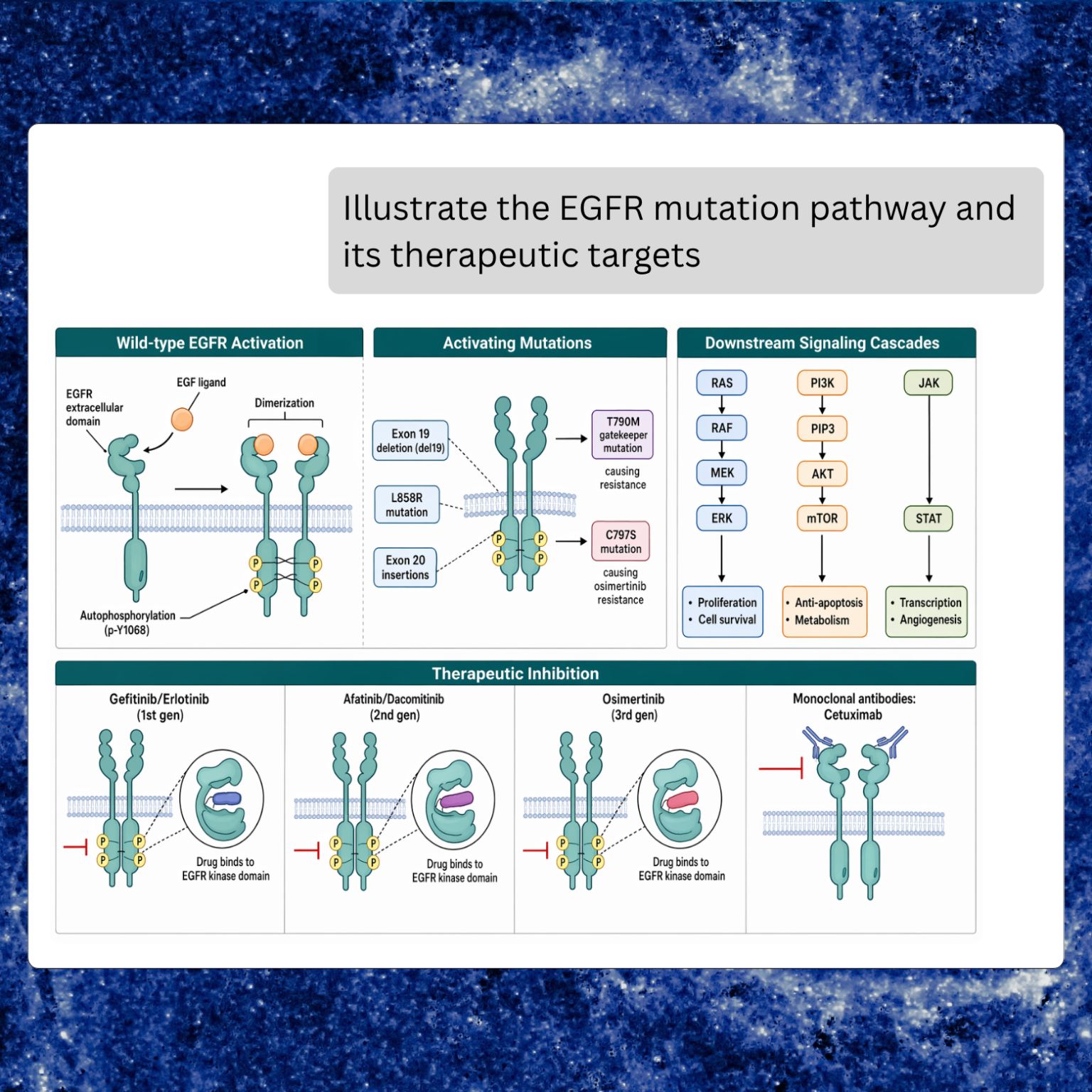
Figure generation is for things you would normally open BioRender, Illustrator, or a slide deck to produce:- A labeled diagram of a pathway, receptor, complex, or cell
- A multi-panel infographic summarizing a workflow or experiment
- A schematic of a mechanism of action
- An illustration of a protein, organelle, or signaling event
- A visual summary of results you just pulled from databases in the same chat
Asking for a figure
Simply describe what you want:- “Draw a diagram of the MAPK/ERK signaling pathway with the key kinases labeled.”
- “Create an infographic summarizing the three-step workflow I just ran.”
- “Illustrate a nucleus with the major compartments annotated.”
- “Make a schematic of antibody-antigen binding at the CDR loops.”
- “Visualize the VEGF signaling cascade as a pathway figure.”
Intent, size, and quality
Purna exposes a few controls you can set explicitly if you want a particular look. Most of the time the default (auto) is correct and you can ignore these.
You can also write a natural-language request and Purna will pick sensible defaults. Mentioning “multi-panel” nudges it toward landscape and high quality; mentioning “quick sketch” nudges it toward standard.
Building figures from earlier chat results
The most useful pattern is asking for a figure that synthesizes something you just did. Purna has the full context of the conversation, so it can lift the right elements into the diagram. Examples:- After a deep-research query on PCSK9: “Draw a diagram of the PCSK9-LDLR mechanism based on what you just found.”
- After a protein visualization for BRCA1: “Make a schematic showing the BRCT and RING domains we just discussed, with key residues labeled.”
- After an enzyme design result: “Illustrate the designed active site with the substrate in place. Label the candidate catalytic residues.”
What you get back
The generated figure appears inline in the chat as a rendered image. You can:- Right-click → Save image as to download the PNG locally
- Click to open in a full-size preview
- Ask for a revision in the next turn (“change the arrows to dashed”, “move the substrate to the top-left”, “relabel ‘Gene A’ as ‘BRCA1’”) and Purna will regenerate with your edits applied
Figure generation is a creative tool. For anything destined for a paper, a regulatory submission, or a clinical report, the figure should be reviewed, edited in a dedicated graphics tool if needed, and verified against the underlying data. Use it as a first draft that saves you the BioRender hour, not as a final deliverable.
Tips for great figures
- Describe, don’t list. “A kidney nephron showing the glomerulus, proximal tubule, and loop of Henle, with blood flow arrows and filtration labels” beats a bare bullet list.
- Anchor spatial layout. Say “top-left”, “flow from left to right”, or “two panels side-by-side” if the layout matters.
- Quote exact labels. Wrap every term you want rendered verbatim in double quotes, especially gene names, residue identifiers, and abbreviations.
- Start general, then refine. A first pass establishes the composition; follow-up turns polish labels, colors, or emphasis.
- Lean on context. If you have run searches, lookups, or analyses in the same chat, ask the figure to draw from them rather than re-specifying the content.
- Pick intent deliberately for dense diagrams.
infographicis the right default for a multi-panel summary;pathwayis the right default for signal flow with arrows;diagramis the right default for an anatomical or structural schematic.