
Create a project
Open the sidebar and click New Project under Projects. Enter a project name, choose an icon and color, then select the visibility setting.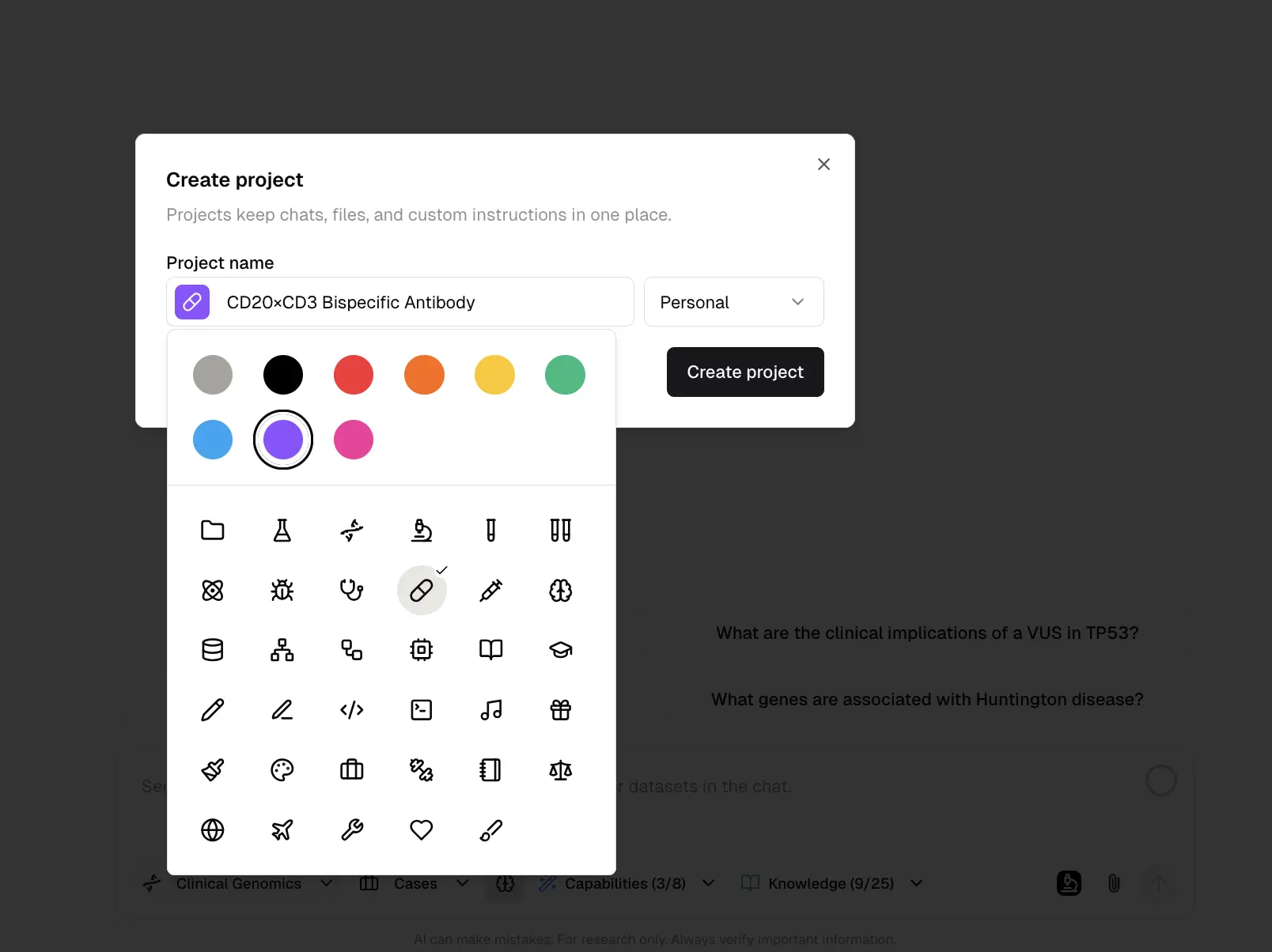 Project visibility controls who can see the project:
Chat privacy is still enforced inside team projects. A private chat remains visible only to its owner. Team members can only see chats that are explicitly shared.
Select a project in chat
Before you start a new chat, use the project selector in the chat input to choose where the chat should live.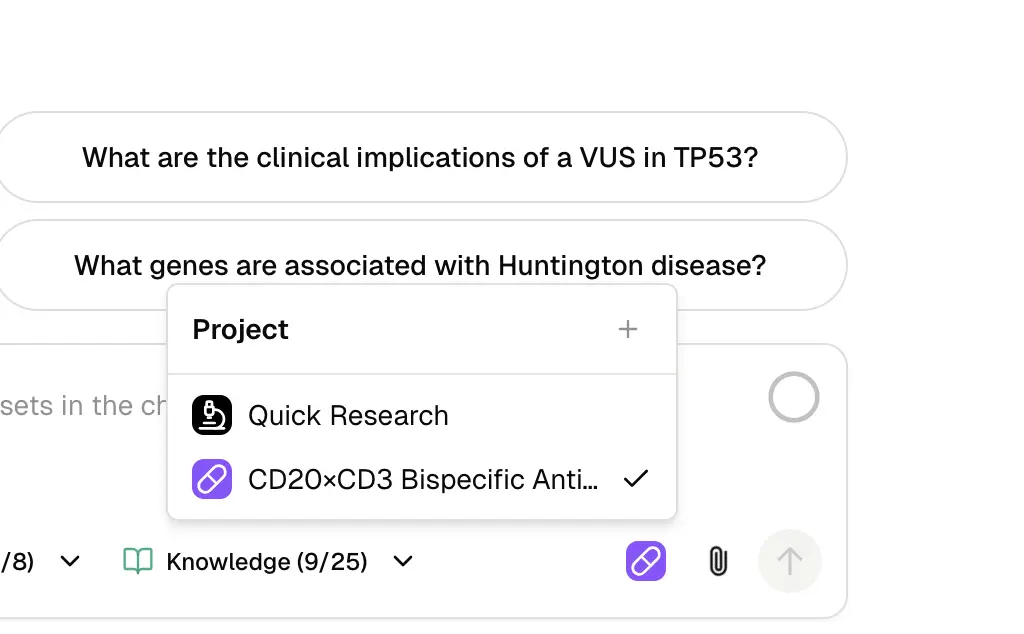 The selected project applies to:
- The new chat
- Files you upload in that chat
- Images, predictions, and generated files created during the chat
- Long-running job outputs connected to the chat
View a project
Click a project in the sidebar to open its project page. The page shows chats that belong to that project.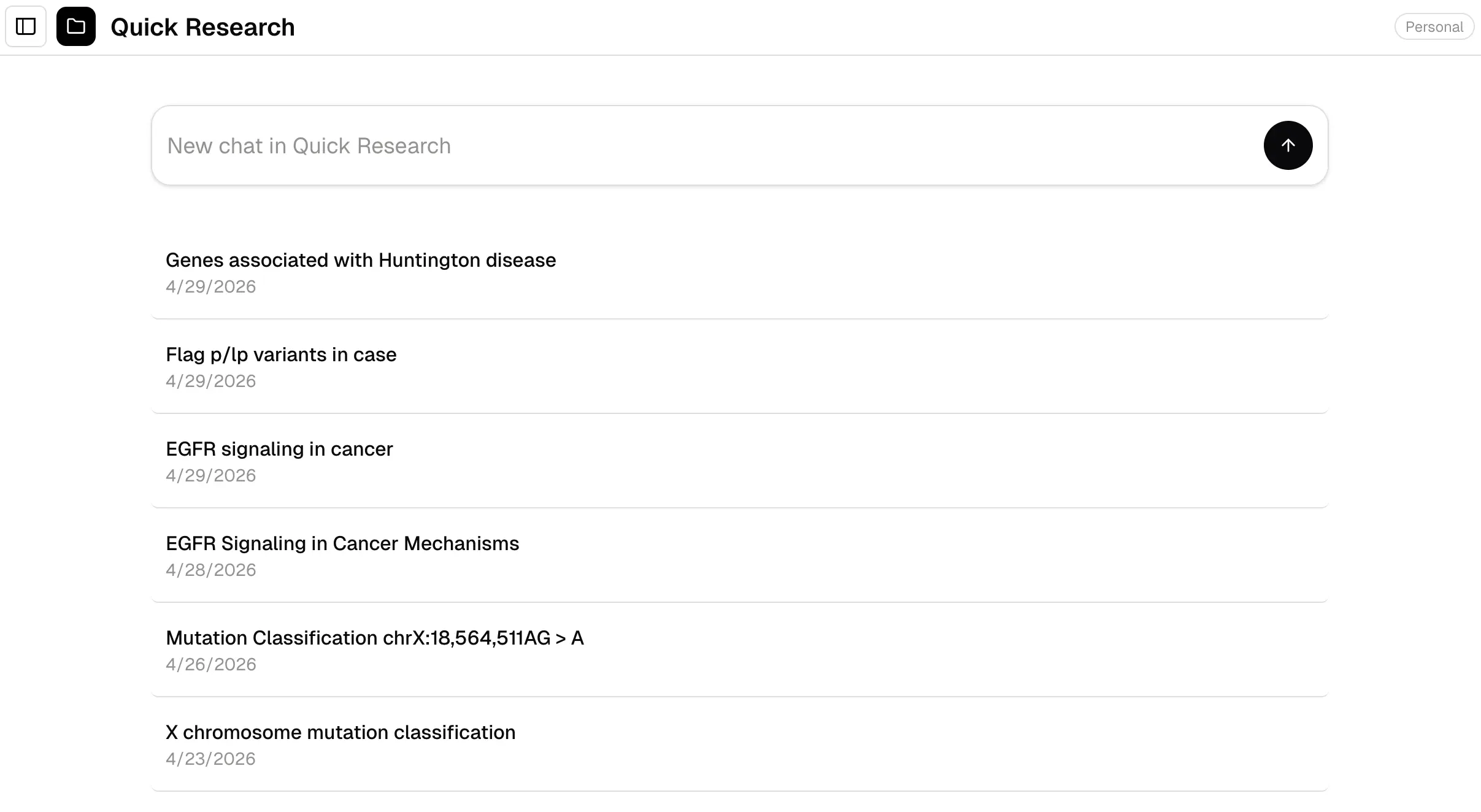 Click a chat to open it. Hover over a chat row to open the menu for available actions such as Rename, Share, and Delete.
Move a chat to another project
You can move a chat between projects from the chat menu. When you move a chat, Purna also moves the files and generated outputs associated with that chat. Before the move is applied, Purna asks you to confirm the change.Work with files in projects
Files are organized by project. This makes it easier to find outputs from a specific research direction or pipeline run. Typical project file groups include:- Uploads for files you attach manually
- Images for generated figures and visual outputs
- Predictions for structure predictions or model outputs
- Runs for larger pipeline outputs and job artifacts
Use projects with teams
Team-visible projects are useful for shared work. For example, a team can create a project for a protein engineering campaign, literature review, dataset analysis, or methods evaluation. Access follows two layers:- Project visibility controls whether team members can enter the project.
- Chat visibility controls whether a specific chat is visible to others.