
1. Submit and clarify your request
Start with the scientific or technical outcome you want to achieve. For example:2. Review the proposed plan
Purna translates the clarified request into an executable roadmap. The plan separates the work into explicit sections so you can review both the intended result and how Purna proposes to reach it.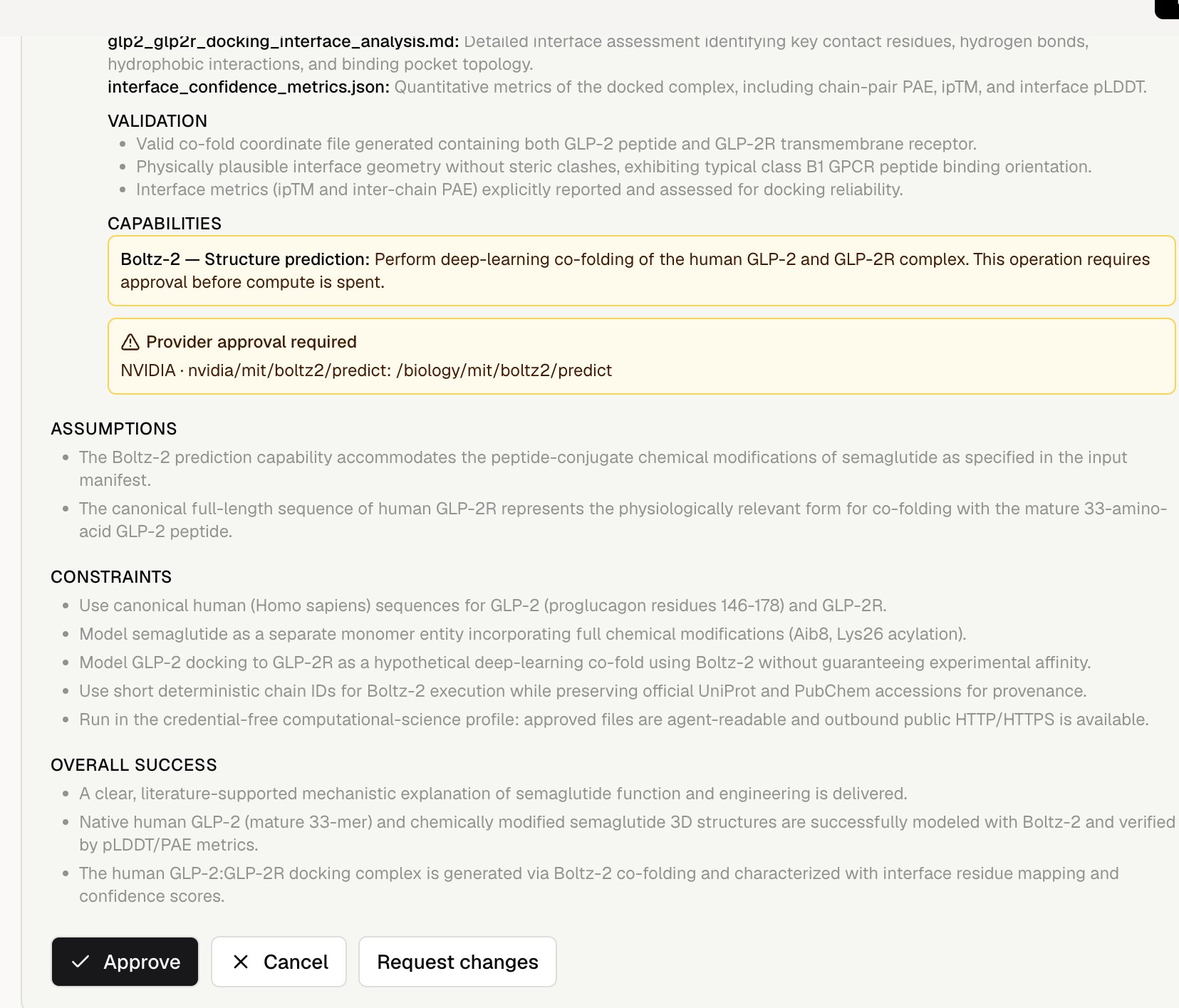
Review the proposed approach, deliverables, validation checks, capabilities, assumptions, constraints, and success criteria.
3. Approve or revise the plan
Choose the next action after reviewing the roadmap:- Click Approve to lock the current plan version and begin execution.
- Click Request changes to revise the scope or approach before work begins.
- Click Cancel to stop the task.
Plan Mode does not automatically turn every task into a Deep Research run. It can prepare many kinds of multi-step work, including literature research, data analysis, code execution, molecular modeling, and artifact generation. For systematic literature reviews, see Deep Research.
4. Follow the execution
You can open the execution timeline in either of two ways: click View reasoning on the task card in the chat, or open Compute in the right panel and select the running task. Both routes open the execution trace, where you can follow the approved roadmap alongside the work being performed. The execution layer records:- The active agent instance and task status
- A chronological timeline of execution steps
- Data sources, tools, scripts, and specialized providers used
- Inputs, outputs, and tool results available for inspection
- Pauses, approvals, review decisions, and failures that require attention
- Files created while the task runs
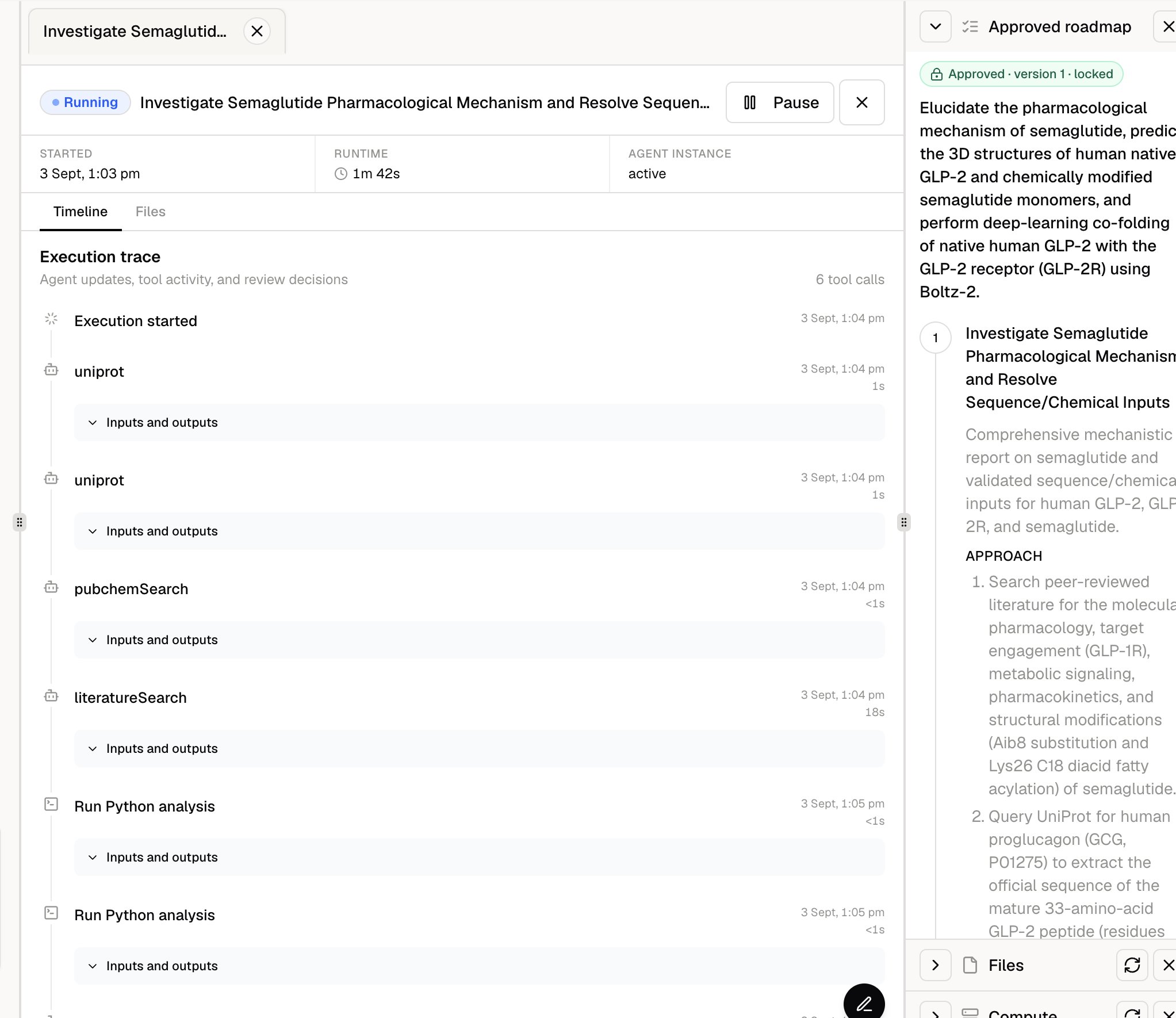
Follow the approved roadmap and inspect tool activity in the live execution timeline.
5. Review generated files
When the task produces an artifact, it appears in the session’s Files section. The exact file types depend on your request. A computational biology workflow may generate:- CIF structural files (
.cif) - Structured metadata and metrics (
.json) - Reports and explanations (
.md) - Reproducible analysis or generation scripts (
.py)
answer.md when the workflow includes a final written summary. It consolidates the key findings and points you to relevant information across the other deliverables.
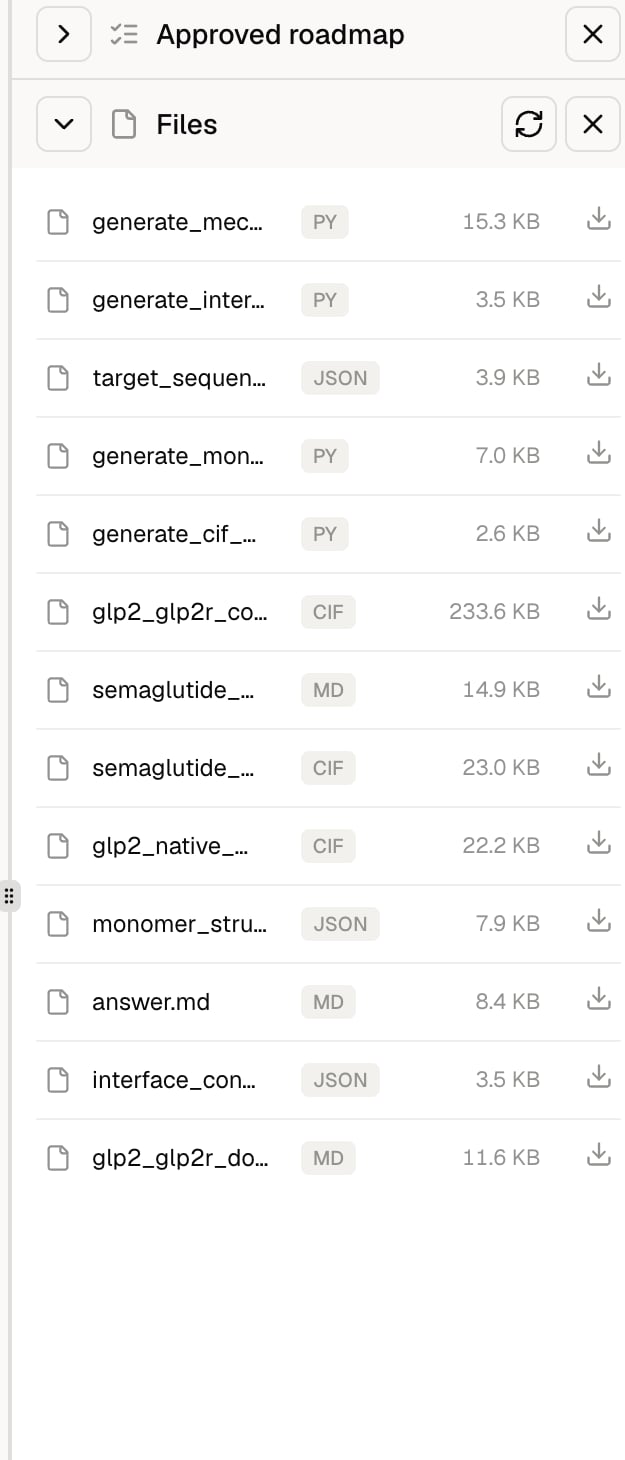
Open or download generated reports, scripts, metadata, structures, and the final answer from Files.
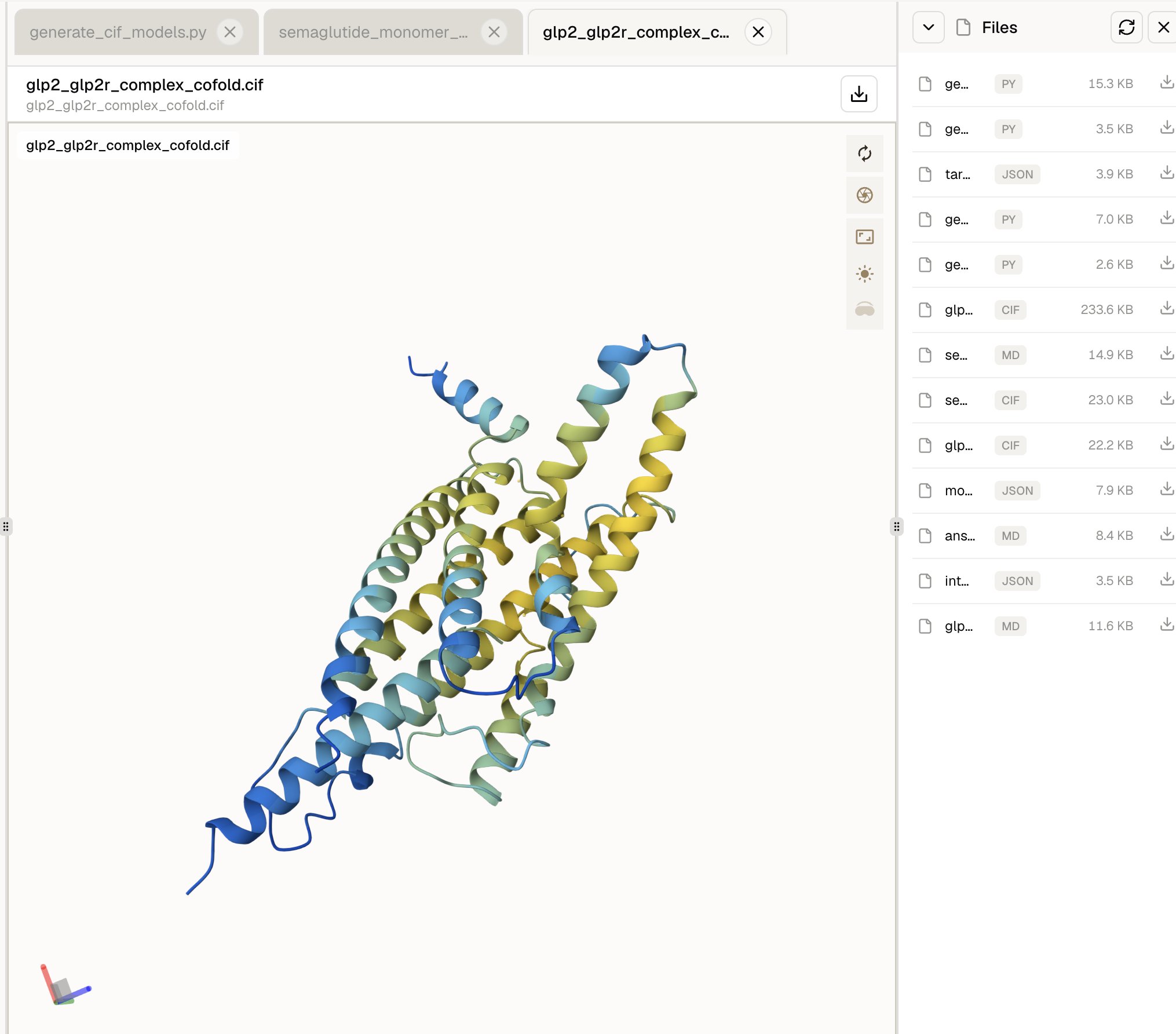
Inspect a generated protein complex directly in Purna's molecular structure viewer.
6. Continue with follow-up requests
After the task finishes, you can continue working in the same session. Ask a related question, request a revision, add another validation step, or build a new output from the completed work. Purna can use the existing session context, including:- Your original request and clarifications
- The approved plan and earlier decisions
- The execution timeline and tool results
answer.mdand the other generated files
Watch Plan Mode in action
See how Plan Mode clarifies, plans, and runs a multi-omics data analysis task.Plan Mode in Purna: running a multi-omics data analysis job