
Use AI Autocomplete
- Open a document in Paper Writer.
- Turn on AI Autocomplete in the editor toolbar.
- Place the cursor where you want to continue writing.
- Write normally and pause when you want a suggestion.
- Review the suggested text, which appears in a lighter color.
- Accept, reject, or refine the suggestion.
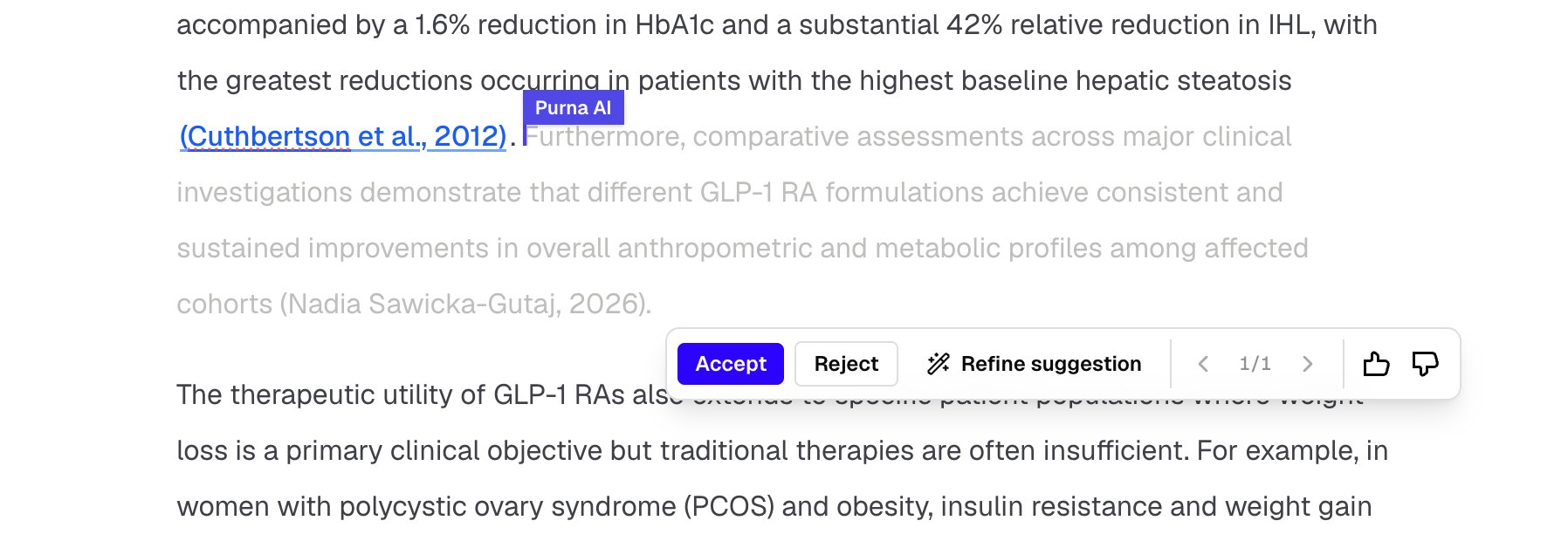
Accept, reject, refine, or rate an autocomplete suggestion.
- Accept inserts the suggestion into the document.
- Reject removes it without changing the manuscript.
- Refine suggestion generates a revised version based on your direction.
- The arrow controls move between alternatives when more than one suggestion is available.
- Thumbs-up and thumbs-down record feedback about the suggestion.
Refine a suggestion
Select Refine suggestion to enter a custom instruction or apply a predefined refinement.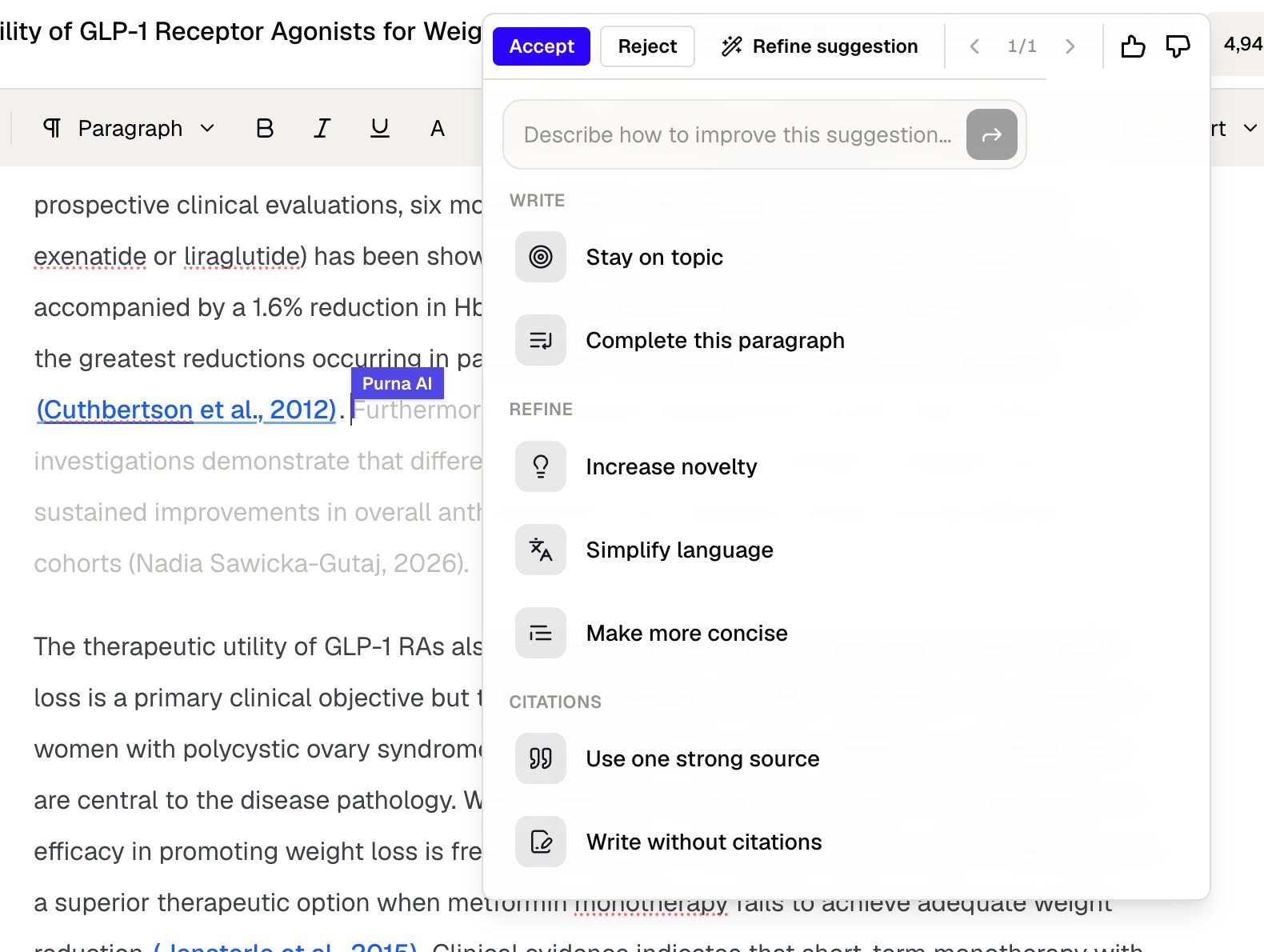
Refine the direction, writing style, and citation behavior of a suggestion.
- Stay on topic keeps the continuation focused on the current subject.
- Complete this paragraph finishes the idea already in progress.
- Increase novelty looks for a less repetitive continuation.
- Simplify language makes the suggestion easier to read.
- Make more concise shortens the proposed text.
- Use one strong source concentrates the cited continuation on one relevant source.
- Write without citations uses the manuscript context without retrieving new literature.
Use scholarly sources
When scholarly search is enabled in autocomplete settings, Paper Writer can retrieve literature relevant to the surrounding text and use it to prepare a cited suggestion. Settings also let you control whether recognized preprint sources may be considered. The source search is designed to support the current passage. It is not a replacement for a complete literature review. Use Deep Research when the question requires systematic searching and screening.Check a supporting citation
Select an in-text citation to inspect its source record. Depending on the available metadata, the citation card can show the article title, authors, journal, publication year, DOI, and PMID.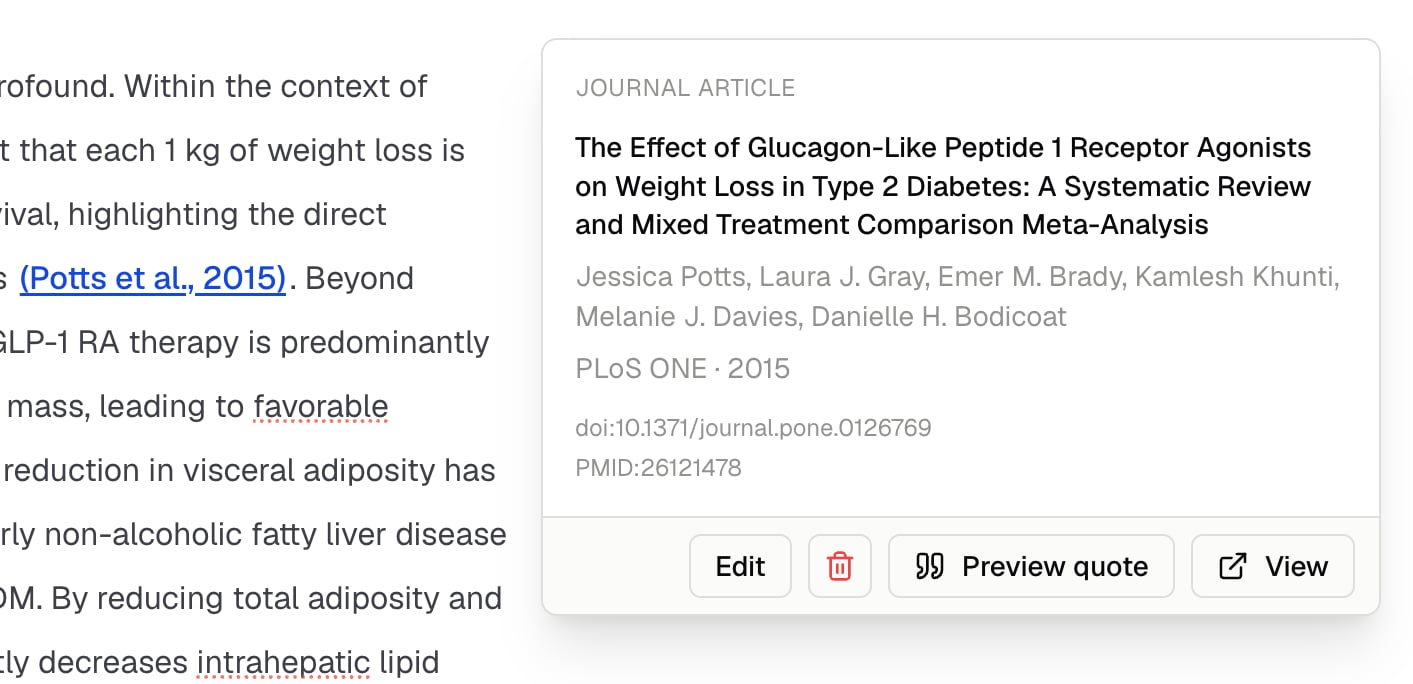
Inspect citation metadata and review the supporting passage.
- Select Edit to update citation metadata.
- Remove the citation when it is no longer needed.
- Select Preview quote to inspect the supporting passage when one is available.
- Select View to open the source article or record.
Preview the quote in the paper
Select Preview quote to open the source PDF beside your manuscript. Paper Writer moves to the page containing the supporting passage and highlights the matched text, so you can compare the suggested statement with its source without leaving the editor.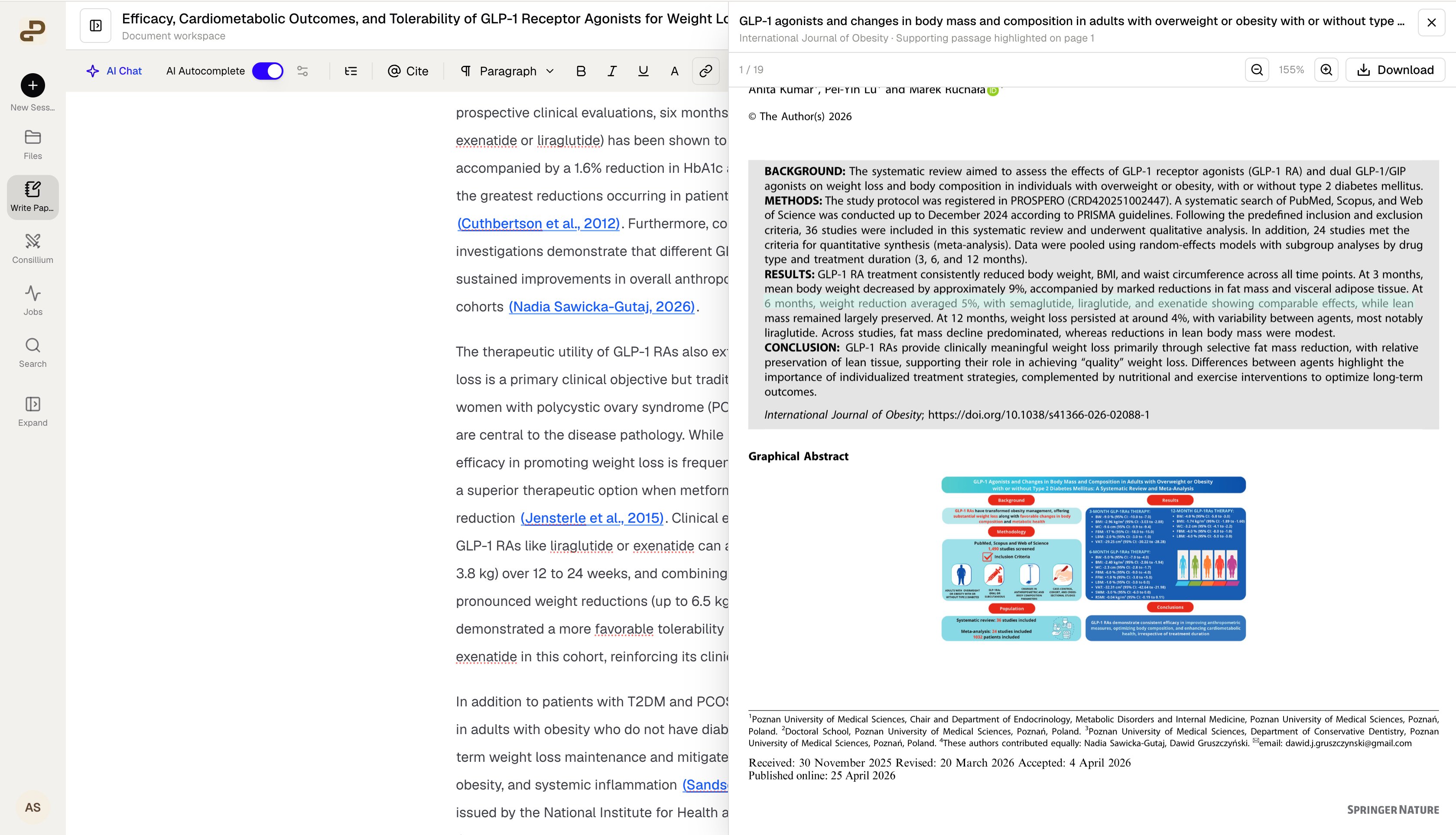
Open the source paper and inspect the highlighted supporting passage.
The PDF preview depends on an accessible source file and a matching passage. When either is unavailable, Paper Writer may show the citation metadata without a highlighted quote.