
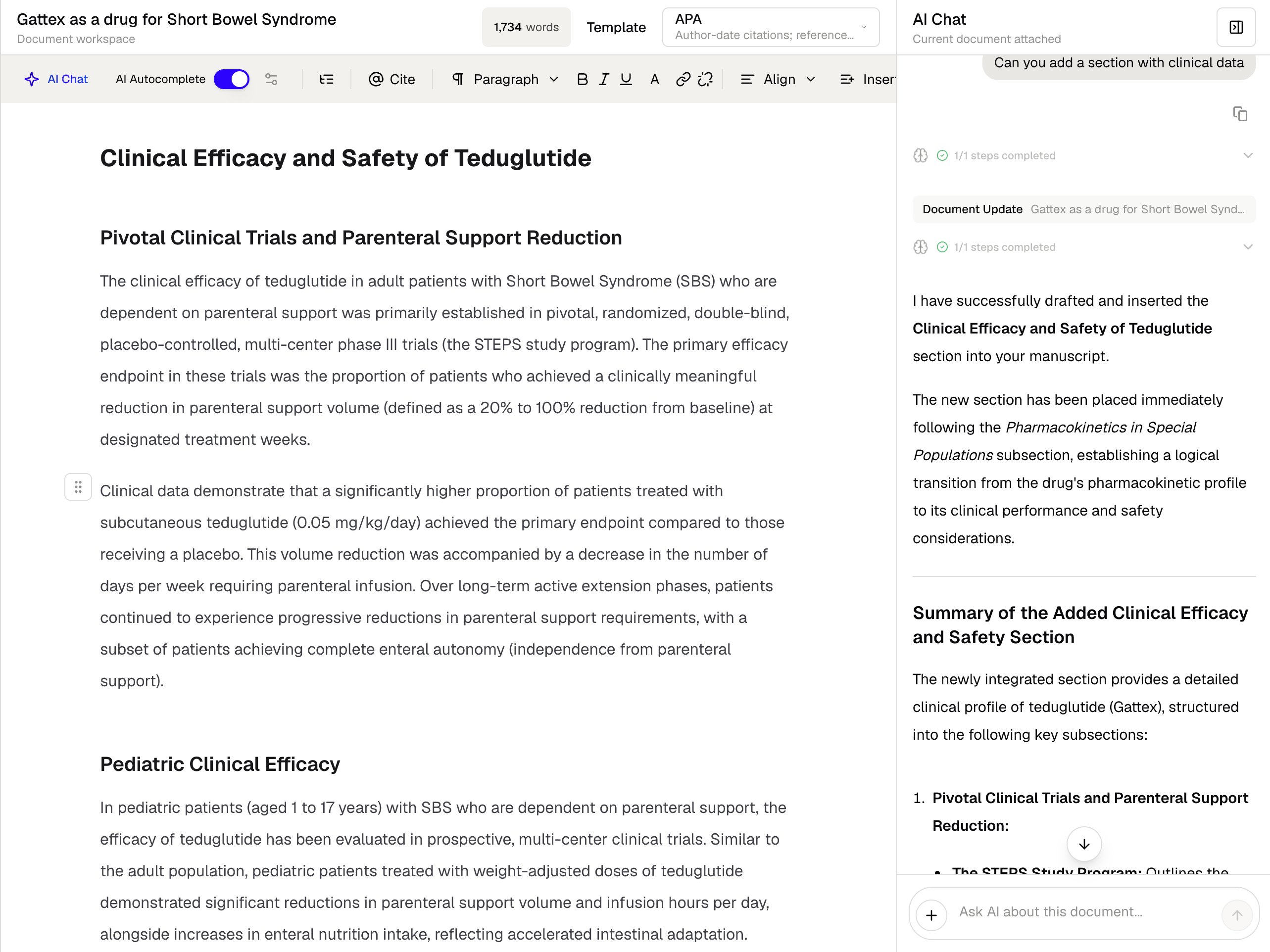
Ask AI Chat to research and add a new section to the current document.
Ask AI Chat about the document
- Open a document in Paper Writer.
- Select AI Chat in the editor toolbar.
- Describe the question or change you want.
- Attach supporting files when they are relevant to the request.
- Follow the research and document-update progress in the AI Chat panel.
- Review the result directly in the manuscript.
What you can ask
Use specific instructions that describe both the task and the expected result. For example:- “Add a section summarizing the available clinical data.”
- “Find evidence supporting this claim and add citations.”
- “Rewrite the discussion to separate findings from interpretation.”
- “Make this methods section more concise without changing the procedure.”
- “Identify unsupported claims in the selected section.”
- “Generate a figure summarizing the mechanism described here.”
Create a table with AI Chat
AI Chat can organize research or manuscript content into a structured table and add it to the current document. Describe the comparison you need, the columns to include, and where the table belongs in the manuscript.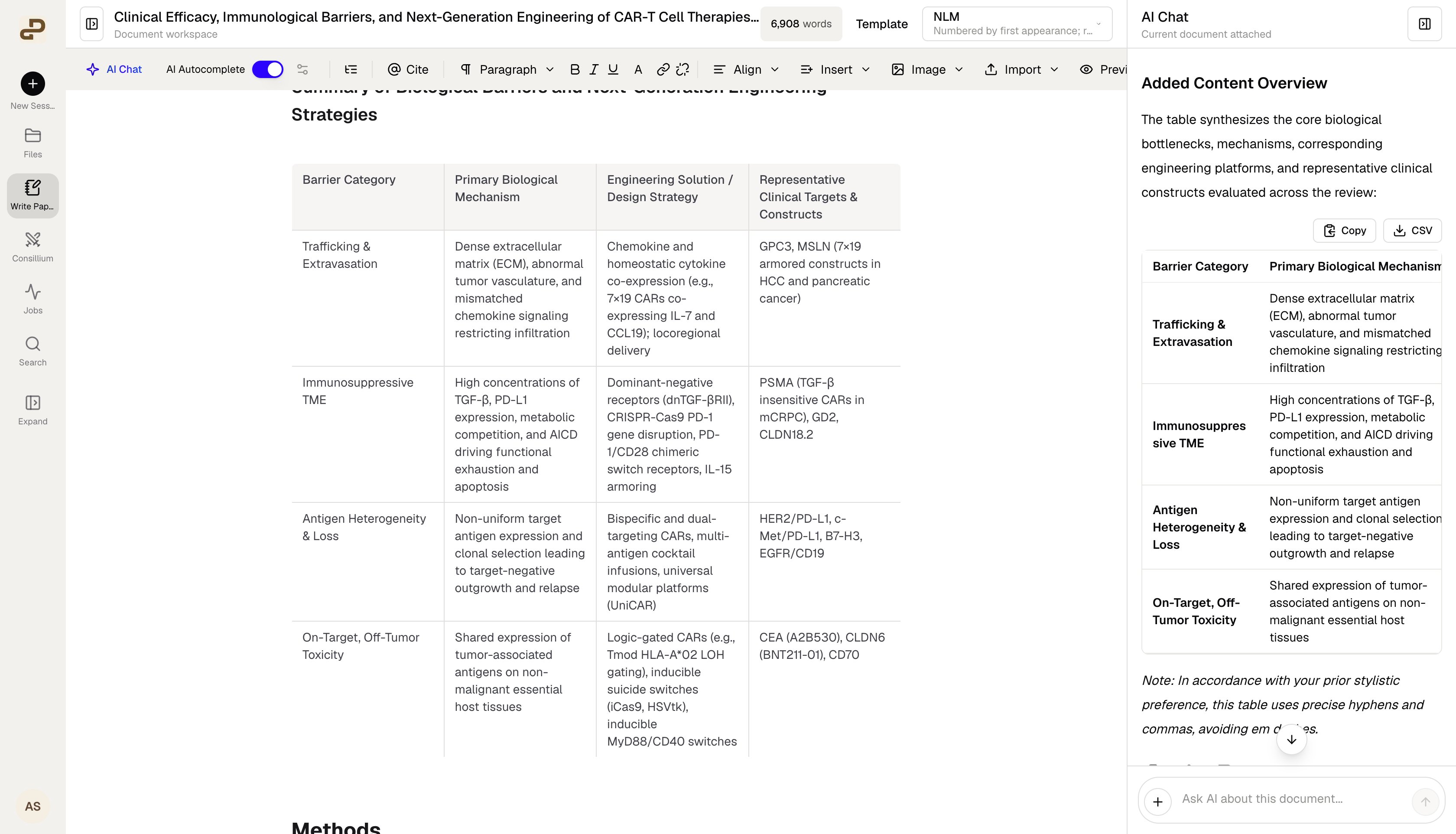
Create and review a structured table with AI Chat.
- Ask AI Chat for a table and explain its purpose.
- Specify the required columns, comparison criteria, and level of detail.
- State whether it should use the current manuscript, attached files, or newly retrieved literature.
- Review the table in the chat panel and confirm its placement in the manuscript.
- Select Copy or CSV when you need to reuse the table data outside the document.
Check every cell against the cited source before publication, especially numerical values, study characteristics, and clinical claims.
Review a document update
For a manuscript change, AI Chat can research the request, prepare the content, and place it in a relevant part of the document. The chat panel shows the completed steps and summarizes what changed. After an update:- Read the inserted text in context.
- Open the citations and confirm that they support the associated claims.
- Check numerical values, study details, and limitations against the original sources.
- Edit or remove content that does not meet your requirements.
- Use Version history if you need to return to a previous draft.
Add figures and other outputs
AI Chat can generate figures or return other useful outputs for the manuscript. When an output is ready, use the insertion control shown in the chat to add it to the document. Review figure labels, captions, and scientific interpretation after insertion.Get better results
- Ask for one well-defined change at a time.
- Name the section that should be created or revised.
- Specify the population, intervention, mechanism, or evidence type that matters.
- State whether you want new literature, existing document sources, or only the manuscript text to be used.
- Ask the AI to preserve uncertainty and conflicting evidence.