
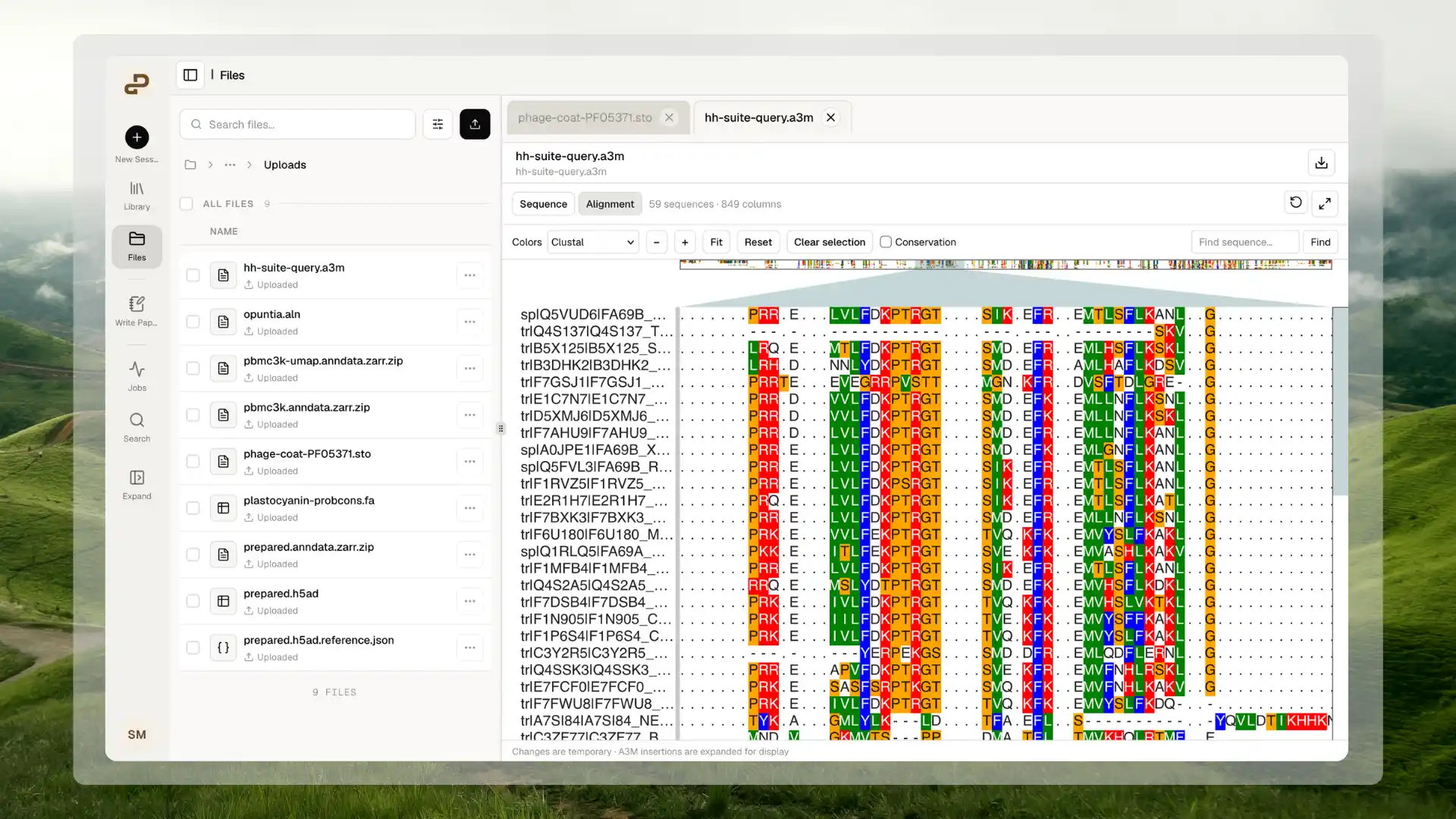
Explore a prepared sequence alignment inside your workspace.
What you can do
This component provides sequence and alignment inspection. It does not provide the full range of tools found in a dedicated alignment editor or genome browser.
Supported files
Extensions are case-insensitive. Use an extension that matches the file’s actual contents. For example, a FASTA-formatted alignment saved with an
.aln extension needs the appropriate FASTA extension; changing a filename does not perform a format conversion.
Prepare your alignment
- Supply an alignment you have already calculated when you want to compare corresponding positions. Equal sequence lengths alone do not establish a valid biological alignment.
- Give every sequence a unique identifier. In FASTA and A3M headers, the first word is the identifier; the remaining text is its description. Descriptions alone do not distinguish duplicate identifiers.
- Keep all rows, gaps, and blocks intact. Upload one complete alignment per file.
- Use UTF-8 text and valid sequence characters for the selected format. Numeric quality scores, spreadsheet exports, or binary data are not sequence rows.
- For A3M, keep uppercase match residues, deletion dashes, and lowercase insertions in their original roles. Do not uppercase the file to make its rows appear equal in length.
- If your A3M export contains additional non-sequence records, such as numeric confidence annotations, export a sequence-only viewing copy before uploading it.
How your file is prepared for viewing
When you open a supported file, Purna checks that it is complete, readable, and within the preview limits. It checks the sequence identifiers, row structure, and format-specific alignment requirements before displaying it. Ordinary FASTA can use Sequence view when it is not an alignment. Purna does not add gaps or align unequal-length records automatically. Files explicitly marked as alignments must satisfy their format’s alignment requirements. For A3M, insertion positions are expanded for display. The displayed grid can therefore have more columns than an individual input sequence. Your original file is unchanged, including its identifiers, residues, letter case, and gaps. You do not need a companion index, a second upload, or a manually prepared preview file. Opening the file does not trim sequences, infer homology, calculate a tree, perform variant calling, or start a biological analysis. To create or convert an alignment, request that work separately and review the output before opening it.Working with your data
Open and arrange the viewer
- Upload your supported file through Files, or attach it to a conversation.
- Select the file and wait for Opening sequence file… to finish.
- Use Sequence or Alignment when the corresponding view is available.
- Resize the workspace pane using its divider, or use the expand icon for more room.
Inspect an alignment
- Scroll to move through sequence rows and alignment columns.
- Use − and + to change the horizontal zoom, or Fit to bring the alignment into view.
- Use Find sequence… and Find to jump to the first matching sequence identifier. Search is case-insensitive and accepts part of an identifier; it is not a residue or motif search.
- Choose a Colors scheme to distinguish residues.
- Enable Conservation when you want to inspect agreement across columns. Leave it off when you do not need it, especially for larger alignments.
- Use Reset to return zoom and position to their defaults, restore default coloring, and clear the current selection.
Select cells and regions
An alignment cell is one row-by-column position containing a residue or gap. It is not a biological cell, as in the Spatial Omics Viewer.- Hold Shift and drag across the alignment to select a rectangular block spanning particular sequences and columns.
- Drag across the position ruler to select a column range across all rows.
- Read the selected column range and row information shown above the alignment.
- Select Clear selection to remove the highlight. Resetting the view also clears it.
Read individual sequences
In Sequence view, use Previous, Next, or Find record… to navigate records. Record search checks identifiers and descriptions. The selected record displays its description, position-numbered sequence text, residue count, and inferred nucleotide-like or protein-like coloring. Residue counts exclude gaps and stop markers. For nucleotide-like data, GC percentage uses unambiguous A, C, G, T, and U bases as its denominator; ambiguity symbols and gaps are excluded. Alphabet inference can be ambiguous, so verify the sequence type and source before using these values in an analysis.Work with an agent
Agents can work with your files for analysis, statistics, and scripts. You can ask for tasks such as counting gaps, calculating conservation statistics, checking identifiers, converting a supported alignment, or preparing a smaller viewing copy. Review the method and any new output file before using it. Agents cannot view the graphics or slides displayed inside scientific components. They can read and interpret selections when you provide the selection as readable data, sequence identifiers, and a clearly defined region. The Sequence Alignment Component does not automatically attach its graphical selection to chat. When asking about a region, provide the file, the relevant sequence identifiers, the column range, whether positions include gaps, and the question you want answered. Ask the agent to confirm the coordinate convention before running calculations. A request such as “analyze what I selected” alone does not give the agent that context.Size and performance limits
All applicable limits must be met. For example, 5,000 sequences × 1,000 columns reaches the displayed-position limit, even though both dimensions are below their individual limits. A3M limits apply after insertion columns are expanded.
Ordinary FASTA within the file and record limits can still open in Sequence view when its alignment would exceed the column or displayed-position limit. Explicit alignment formats that exceed those limits do not open as an alignment.
A successful upload does not guarantee a preview. The complete file must load and pass validation before the alignment appears; incomplete downloads and partial alignments are not progressively displayed. Large files or wide alignments can take longer to open and consume more memory, even within these limits.
For a slow or oversized file, prepare a smaller viewing copy using selected sequences or a clearly defined region. Preserve the original and document any filtering or trimming. Repeatedly reopening an unsupported file does not convert it or remove the limit.
Temporary state
Your sequence file remains unchanged. Colors, selected records, zoom, position, and highlighted regions are temporary. Switching between open tabs preserves the temporary view for the same file. Closing the tab or reloading the page discards it. Use Reload sequence file to reread the source when needed; if the underlying file has been replaced, review its contents and make a new selection. This component does not save annotations, personal labels, edited alignments, or selection history. Downloading retrieves the original file, not the highlighted region or a screenshot.Files and workflows that will not work
- Compressed sequence files such as
.fa.gz,.aln.gz, and.a3m.gz, or alignments packed inside ZIP or TAR archives. Decompress and upload the supported text file. - FASTQ, GenBank, EMBL, SnapGene, and chromatogram files. These need different viewers or an explicit conversion suited to your task.
- PHYLIP, NEXUS, MSF, PIR, A2M, EMF, and other formats outside the supported list. Export a supported alignment instead.
- CSV, TSV, JSON, and ordinary text files renamed to an alignment extension. CSV files keep their table preview.
- Multiple concatenated alignments in a single file. Split them into one complete alignment per file.
- Duplicate identifiers, missing sequence rows, inconsistent alignment blocks, malformed text, or truncated files.
- Unequal match-column counts in A3M, or unequal row lengths in explicit aligned FASTA.
- Tree files, domain tracks, genome annotations, or quality-score records supplied as alignment files. This component does not provide tree construction, annotated genome browsing, sequence editing, or quality-score analysis.
Troubleshooting
Return to Scientific Components, or see Files for uploading and organizing your data.